Germany only
With the Finance account data manager, you can export finance data, i.e. according to DATEV standards and import payments (prima notes). Other target formats are possible for exports upon request.
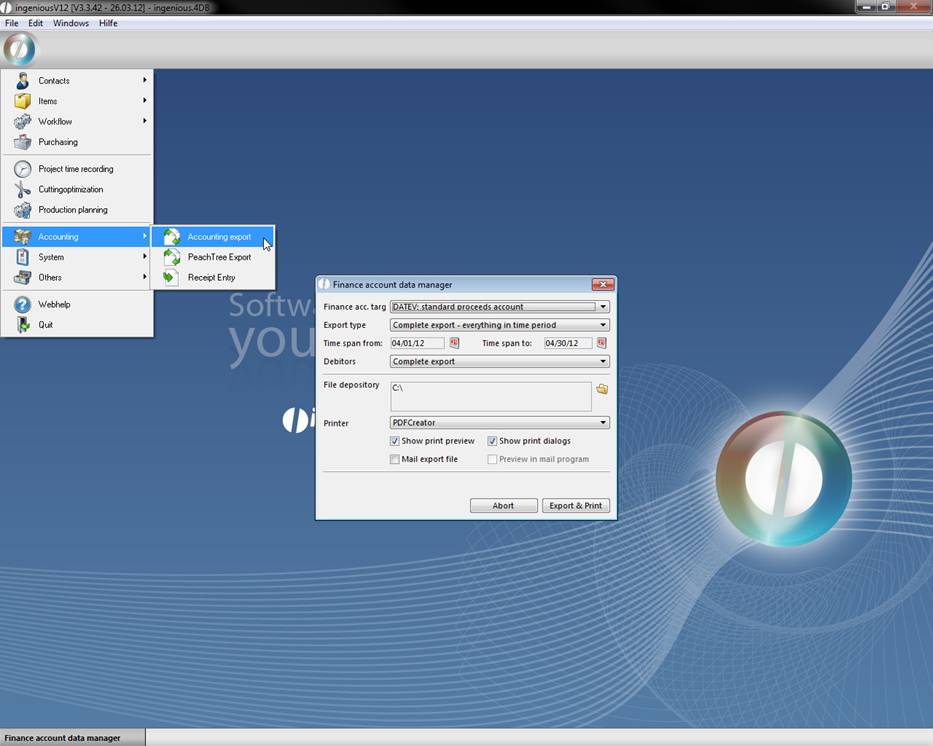
Settings in ingenious.V12
In order to export data in DATEV format, for example, diverse entries are necessary in the program settings (in the menu item, “Other”).
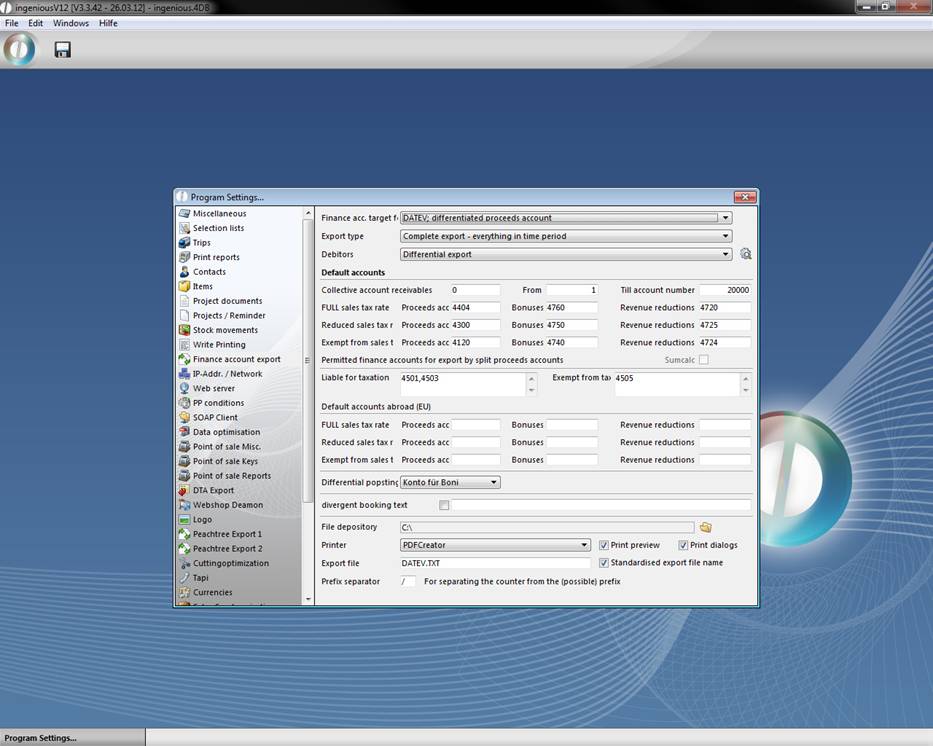
Finance account export settings
It must be determined with which format you would like to export / import your data. In addition, the different export possibilities such as “DATEV; standard proceed accounts”, “DATEV; differentiated proceed accounts”, “IBM (df); standard proceed account” and the import option “DATEV - import payments” are available to you. Aside from the DATEV interfaces it is also possible to transfer finance data to the IBM financial accounting
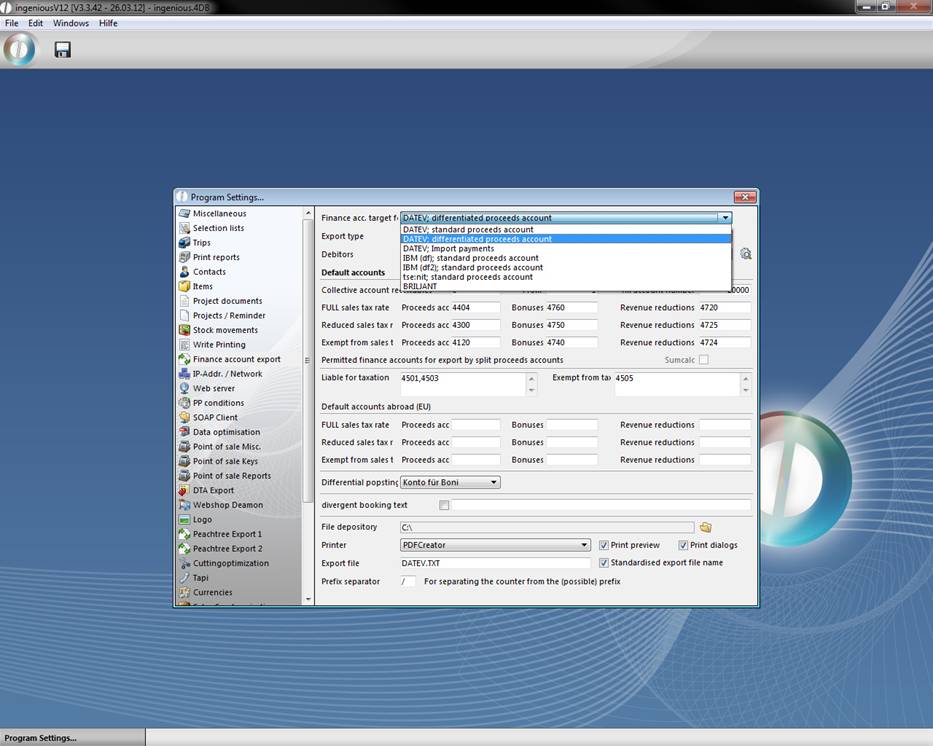
Standard proceed accounts
With this setting the proceeds are booked in one of three standard accounts (FULL USt rate, half a USt rate, USt free) or premium and proceed accounts.
Differentiated proceed accounts
With this option, the proceeds on more than only nine standard accounts can be booked. In the area, “Taxable” or “Tax-free”, you have the possibility to give other permissible revenue accounts for the export. If the proceed account to be exported is placed in these fields, it is added to the export file. Otherwise it is booked on one of the standard accounts.
Import payments
With this setting, you can import payments that were worked on with external applications. The selection field “Export type” serves to define the data amount of the export. Here you have the choice between the “Complete export” and the “Difference export".
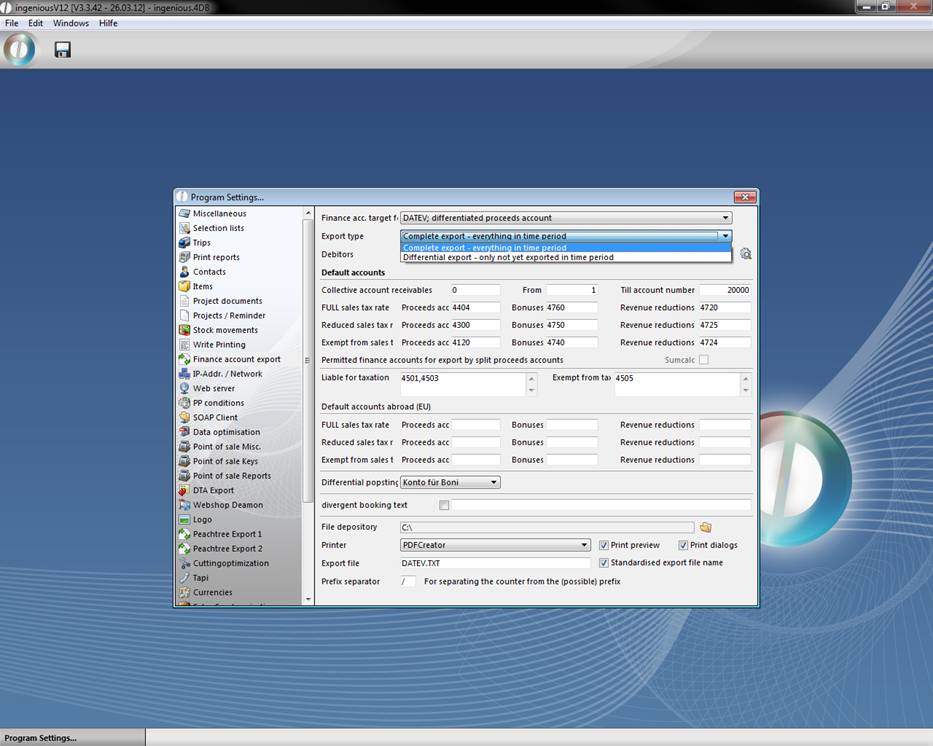
Complete text export
The “Complete text export” exports all projects that have been completed in the set time period. With this variation, completed projects can be exported several times.
Difference export
With the “Difference export” setting, only the projects, which were not exported with the last difference export, are exported.
In the “Standard accounts” area, you can define your revenue and revenue proceed accounts, according to your account parameter. Also, the debtor collective account must be entered. If an accounts receivable lies outside the entered values in the fields “From” and “To account number”, the projects of the debtor are booked on the “Debtors collective account”. The “Taxable” or “Tax-free” fields only matter if the target format “DATEV; differentiated revenue accounts” were entered in the FIBU target format field. Then other proceed accounts which are considered during export can be entered here.
In order to able to differentiate between the different national tax regulations, there is an area “Standard accounts of EU foreign country”. This contains the fields: “USt rate”, “Bonuses” and “Reduction in earnings”.
View of the file attachment and printout
With the  button, the path is determined for the export file. The pop-up field “Printer” indicates all installed printers for the selection as an output device. The two checkboxes “Print preview” and “Show print dialog” show the two the corresponding windows, which offer a lot of information and settings for the printout. The file can be named in the input field “Export file”. With the checkmark, “Make export data consistent” you make sure that the file name you selected is always used. Without this checkmark, a new file name will be generated with each export, according to the following template: Fibu_Export_XZ_YYYYMMDDhhmmss.txt.
X = 2 Differentiated revenue account
Z = 1 Complete text export – All in a time period
= 2 Difference export - Not yet exported
YYYY = Year specification, i.e. 2003
MM = Monthly specification, i.e. 11
DD = Daily specification, i.e. 13
hh = Hourly specification, i.e. 16
mm = Minute specification, i.e. 54
ss = Hourly specification, i.e. 33
Example of an automatically generated file name: Fibu_Export_21_20031113165433.txt
Additionally you can export records of debtors. In this drop down menu you can choose between:
Complete export – exports all records of the debtors, independently whether it was exported already or not
Differential export – exports only records, which were not exported already
Don’t export – exports no debtors records.
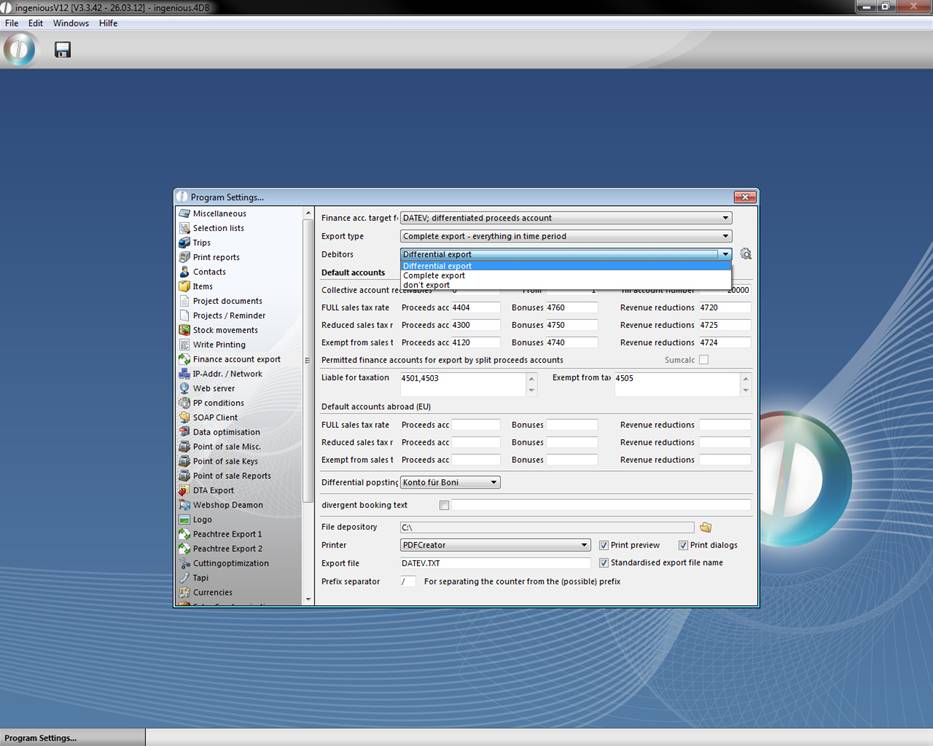
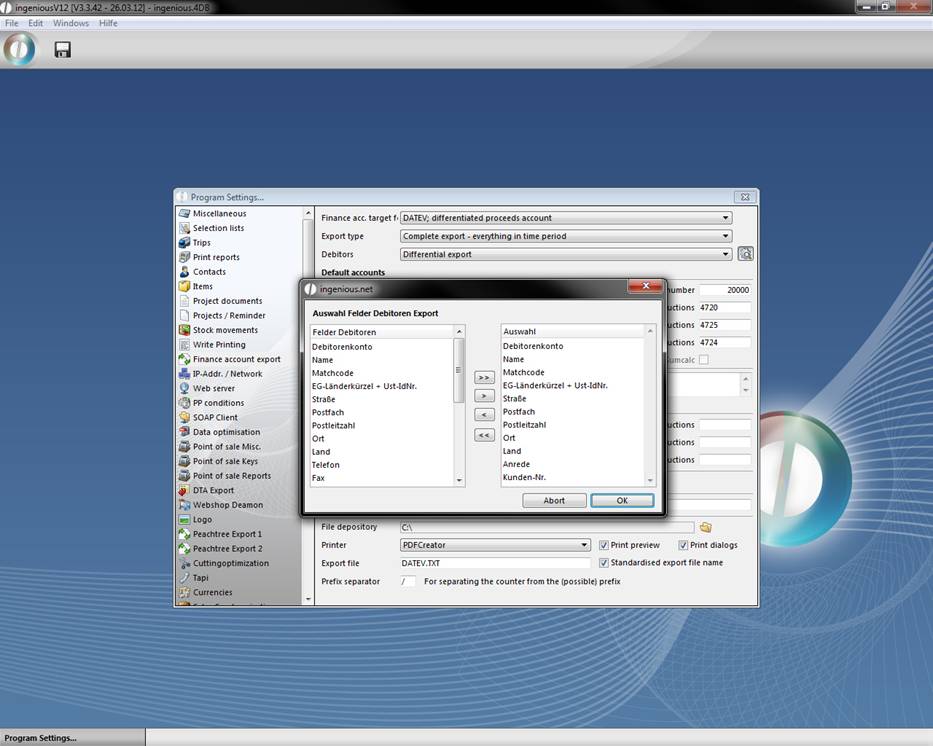
When you click the button  next to the debitors drop down menu a window will open up, where you can choose which debtor record information you want to export.
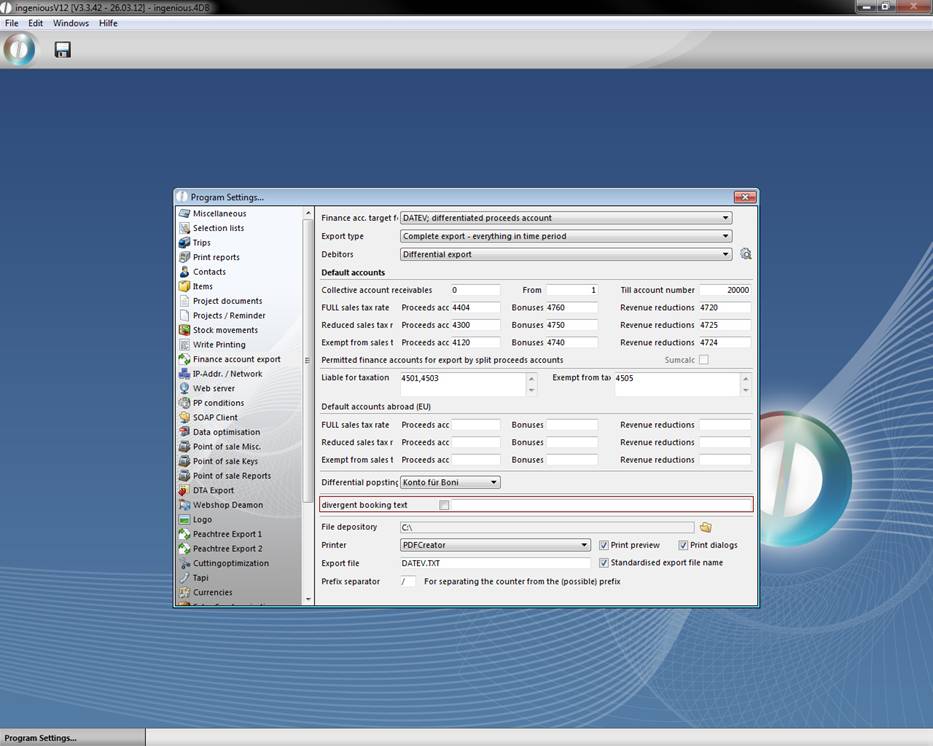
The check box “divergent booking text” enables you to modify the booking text of the output file. By default the booking text is a combination of the document type and the document number (for instance Invoice 123456).
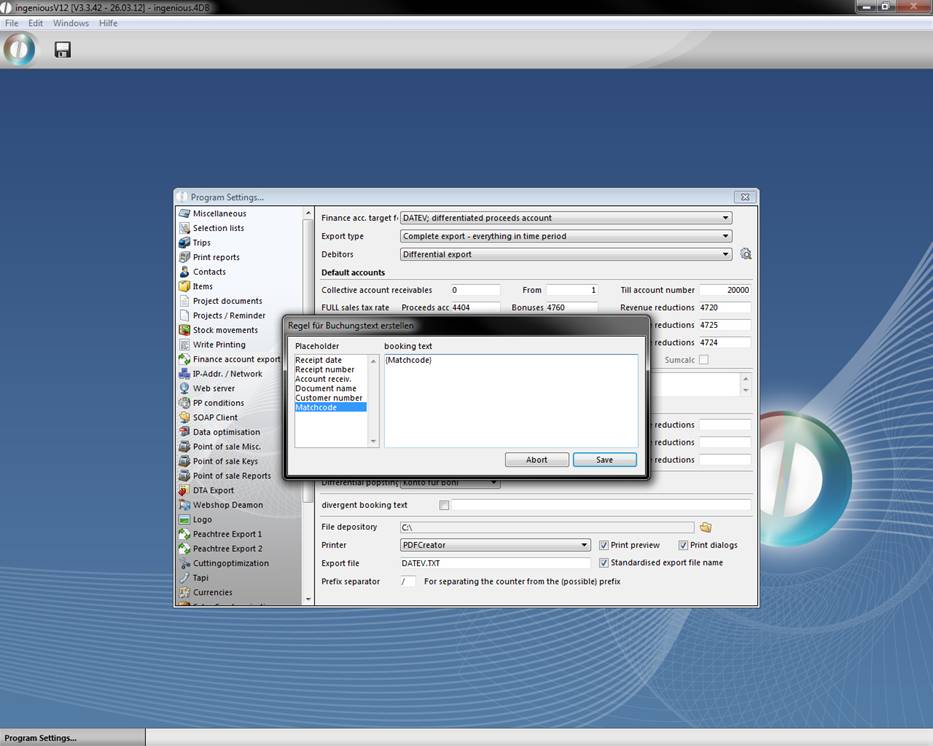
A click in the input field next to the check box will open a dialog window, which will help you with the modification of the booking text. By double clicking “matchcode” the needed placeholder is added to the field.
Settings in DATEV
The import format can be set in DATEV as follows:
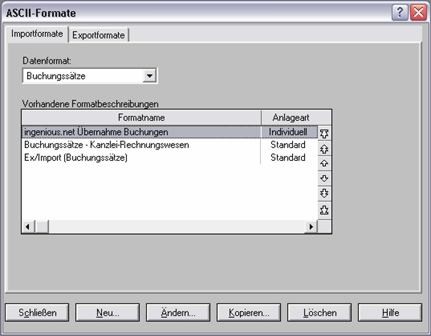
Setting of the import filter
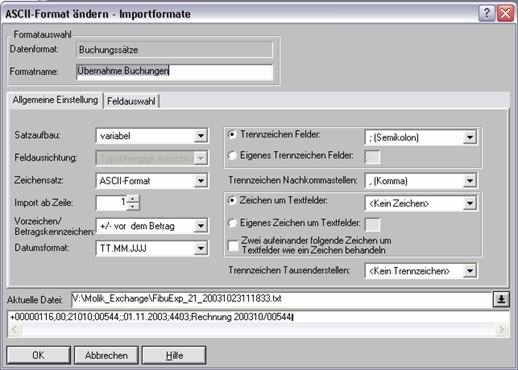
General Settings
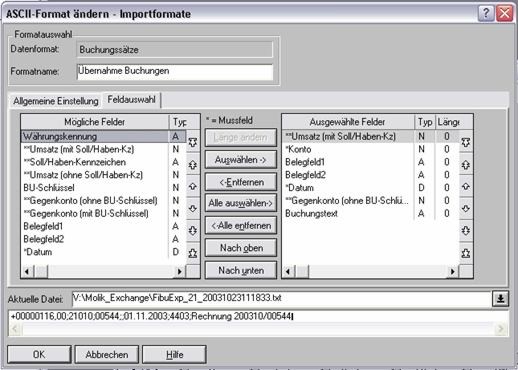
Field selection
Example export
In order to make the export function more understandable, two examples with the precise working steps of Ingenious.V12 follow. If you want to work through the following export examples (uniform and differentiated revenue accounts) synchronically to the manual, then you need two new contacts: “Peter Lustig” and “Peter Pahn”. Assign characteristics for the contacts as follows:
Matchcode: Peter Lustig
Customer number: 151515
Accounts receivable: 19998
Sales tax status: Yes
Matchcode: Peter Pahn
Customer number: 151516
Accounts receivable: 19999
Sales tax status: No
In addition, you need the following six sales articles with individually assigned unit prices:
Matchcode: A1 Article number: 101 Proceeds account: 4501 Vat rate: Full
Matchcode: A2 Article number: 102 Proceeds account: 4502 Vat rate: Full
Matchcode: A3 Article number: 103 Proceeds account: 4503 Vat rate: Half
Matchcode: A4 Article number: 104 Proceeds account: 4504 Vat rate: Half
Matchcode: A5 Article number: 105 Proceeds account: 4505 Vat rate: None
Matchcode: A6 Article number: 106 Proceeds account: 4506 Vat rate: None
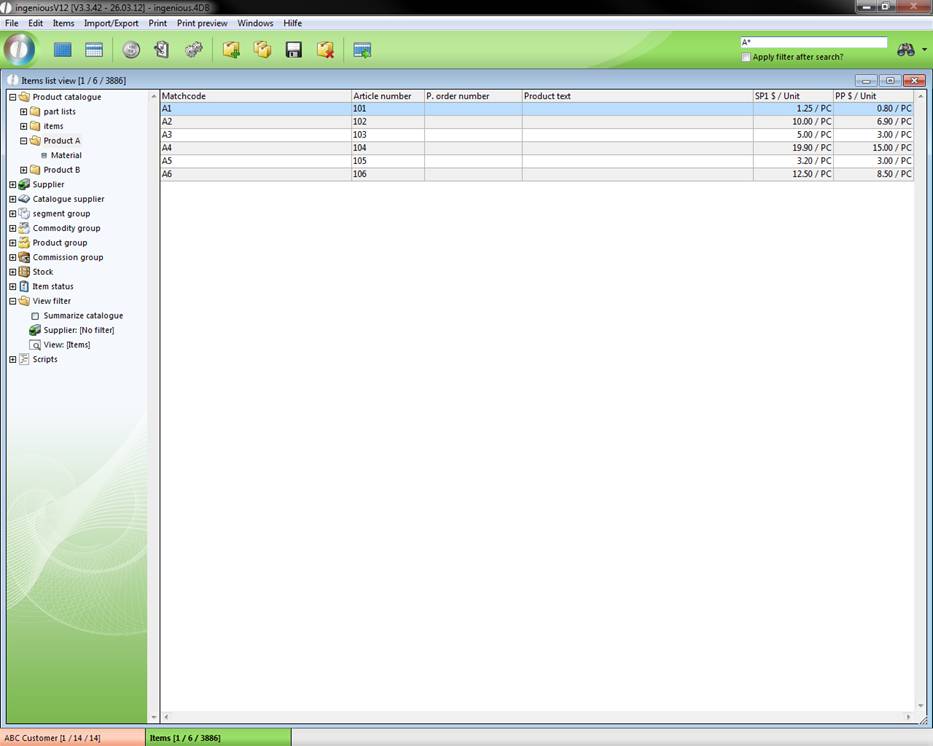
View of the item
Now you must still create a invoice for Peter Pahn and Peter Lustig with the six items (from A1 to A6). Please do not forget to set the date.
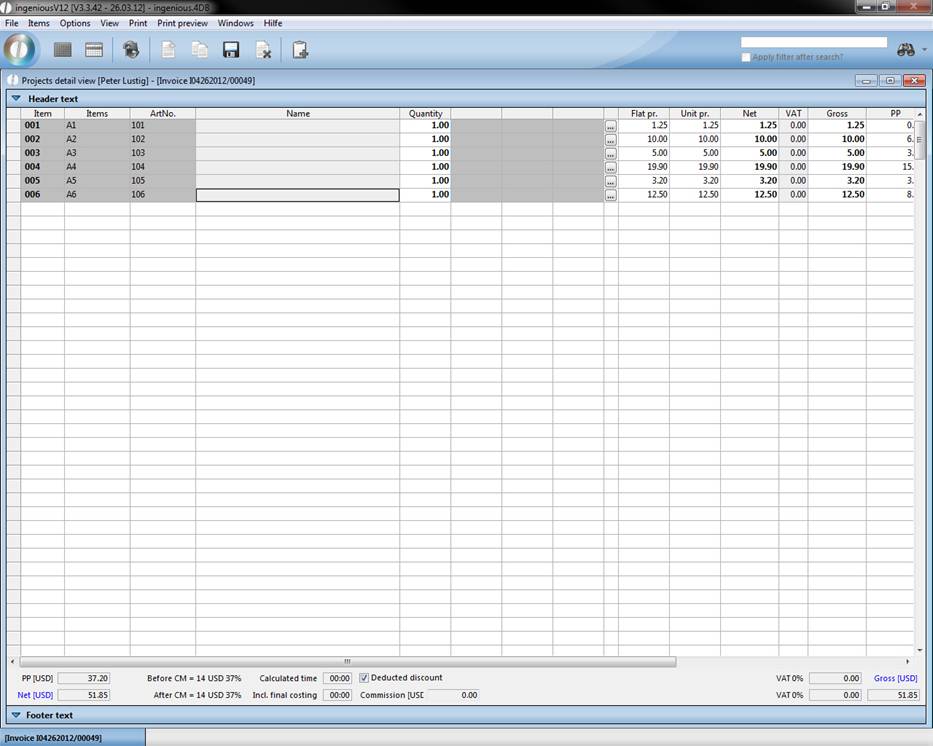
Items from Peter Lustig
Both projects differ only due to the fact that you give a discount of 30% to Peter Pahn.
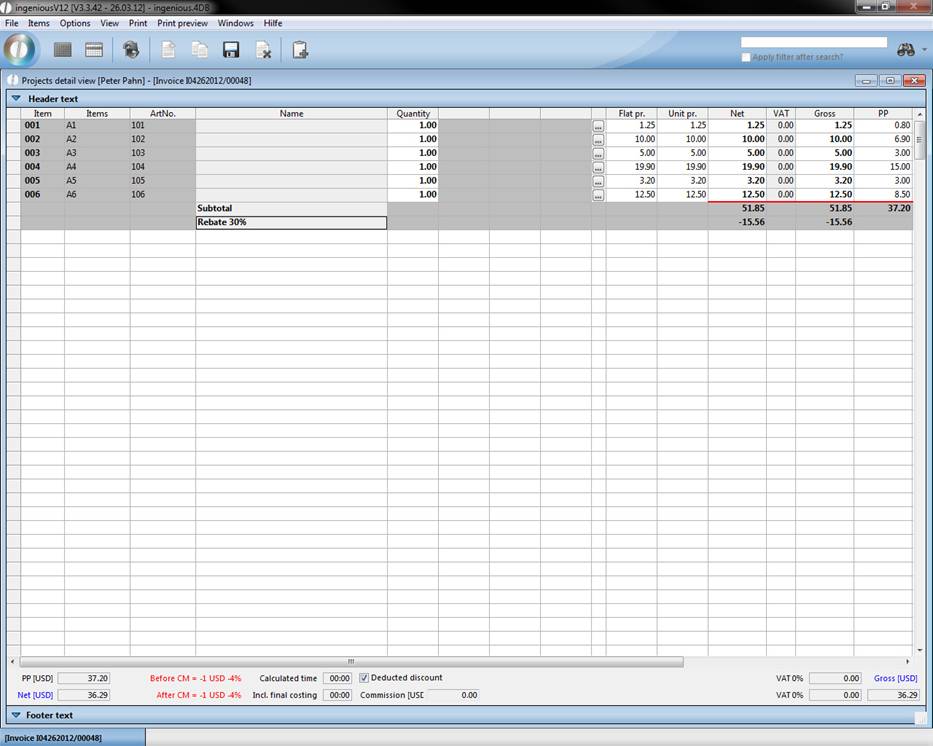
Items from Peter Pahn
Close the projects and forward every project to a “Credit”. In every credit, you delete the articles “A2”, “A4”, “A6” from the items and close them as well.
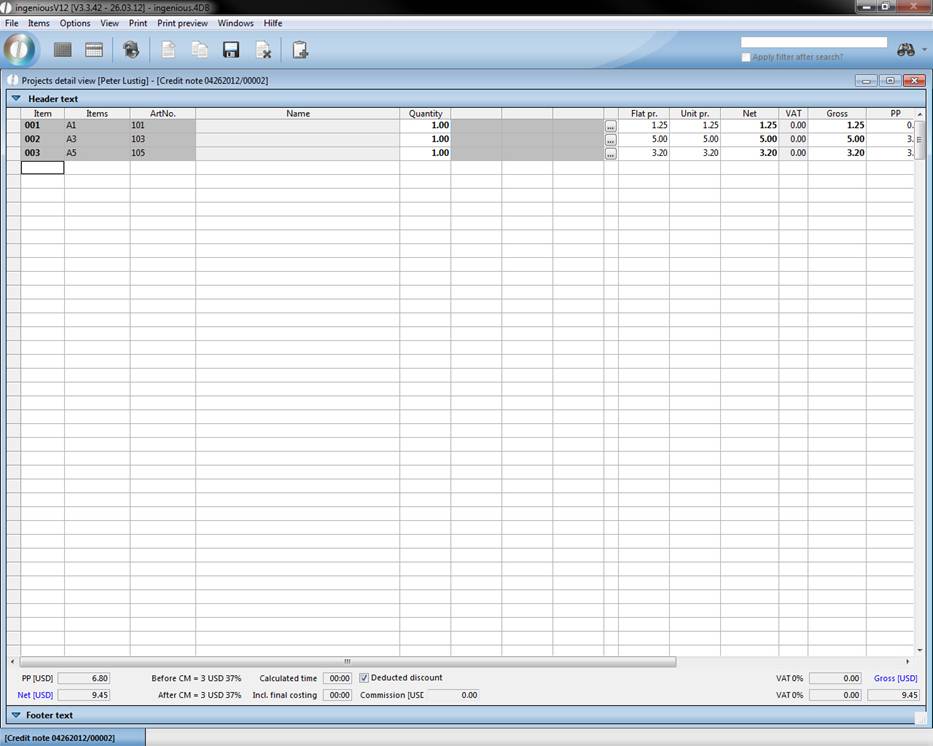
Positions from Peter Lustig
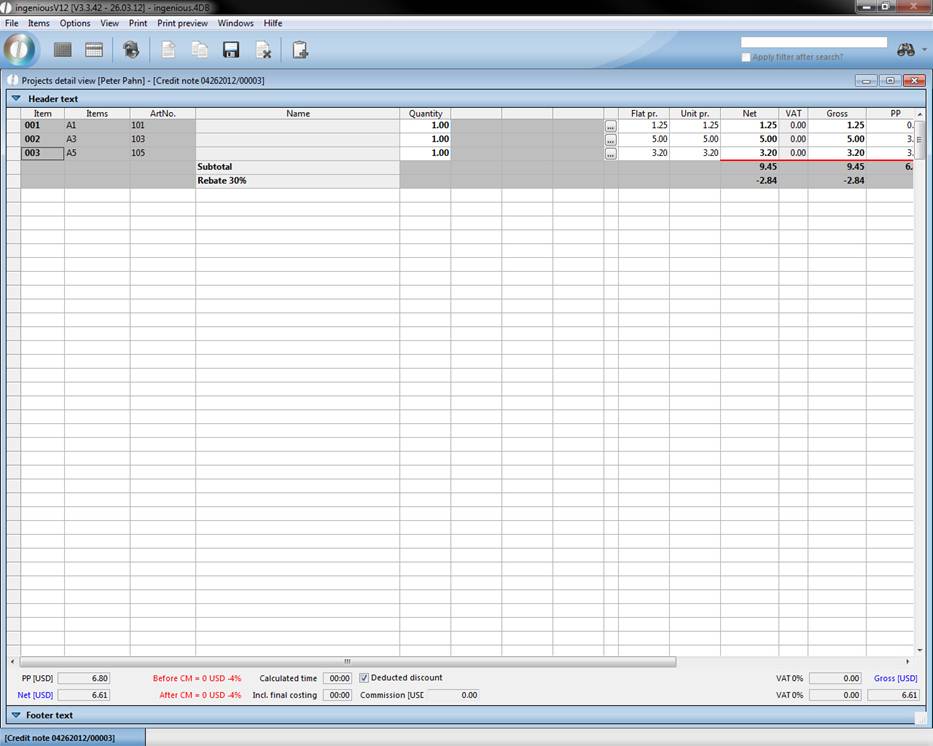
Items from Peter Pahn
Practice with standard proceed accounts
-
Open the “Finance account export” column from the program settings and change the settings according to the following picture:
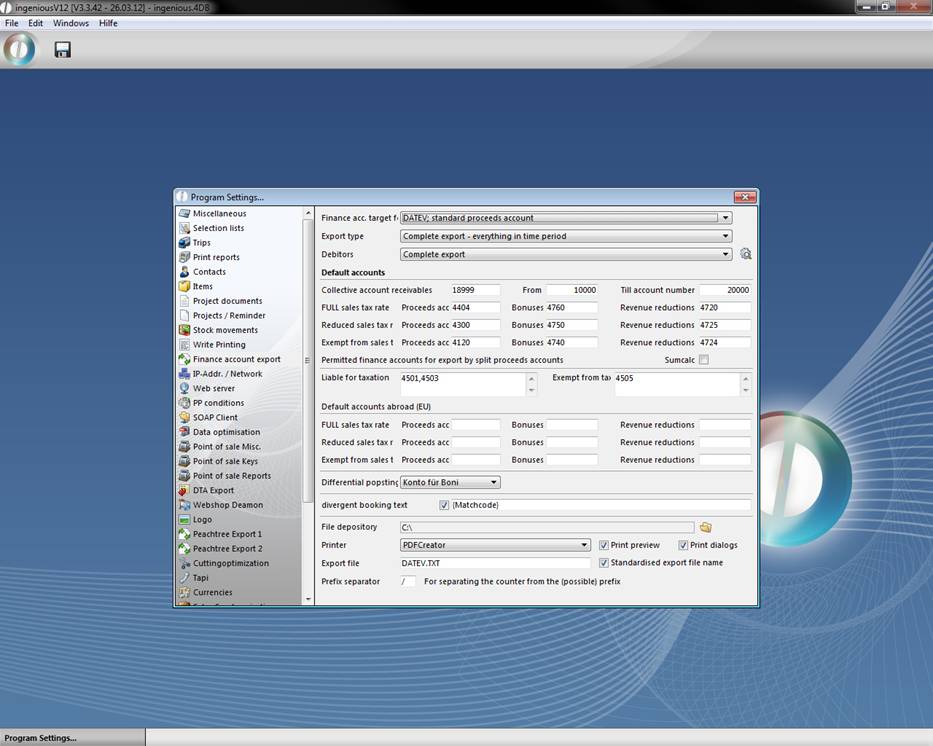
View of the general settings of the FIBU Export
-
Select the Finance account data manager.
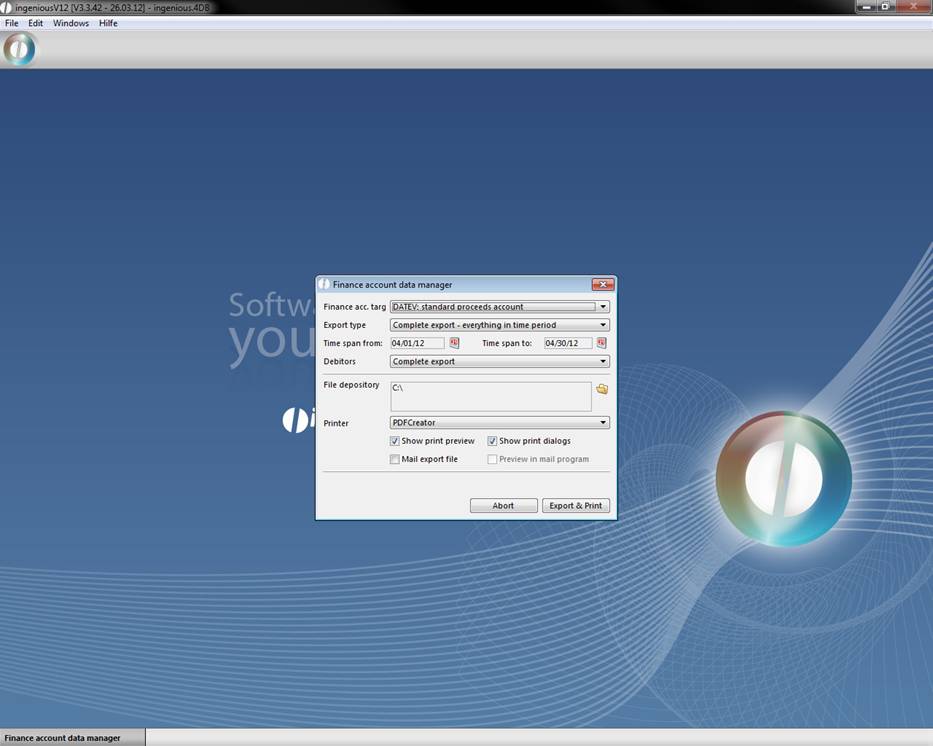
-
Press the button, “Export & Print” in order to begin the export. In case you do not want to have a printout of the export file, click in the suitable window on “Cancel”.
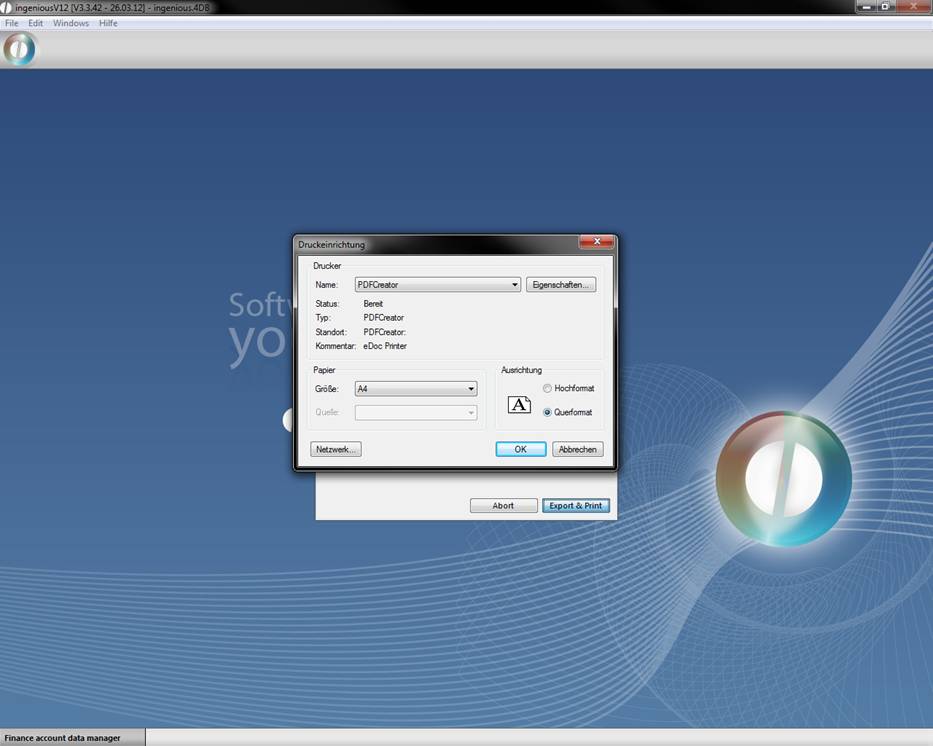
You now find the “DATEV.TXT” export record in the “Own fields” folder. The following modified picture should explain the contents of such an export file to you a little more closely.
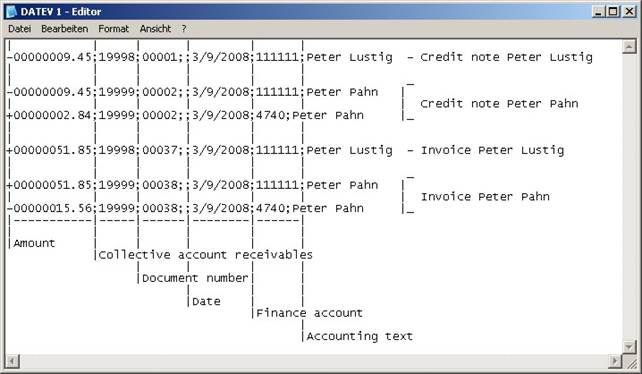
Modified export data DATEV.TXT
Practice with the differentiated proceed accounts
-
Open the “FIBU export” column in the program settings and enter “Differentiated proceed accounts” in the FIBU format. Change the name of the export file in “DATEV2. TXT”.
-
Select the FIBU Data Manger in the main menu. Leave the settings and click on the button “Export & Print”.
-
In the window, select “Print settings” again regardless of whether or not you want a printout or not.
You will again find the export file “DATEV2. TXT” in the “Own files” folder. The following two pictures make the contents of the export file clear.
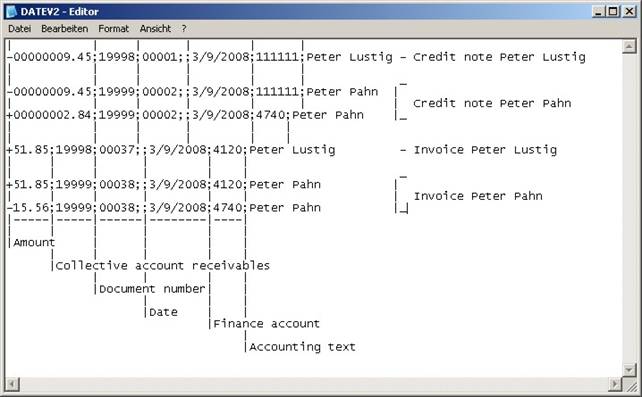
Modified export data DATEV2.TXT
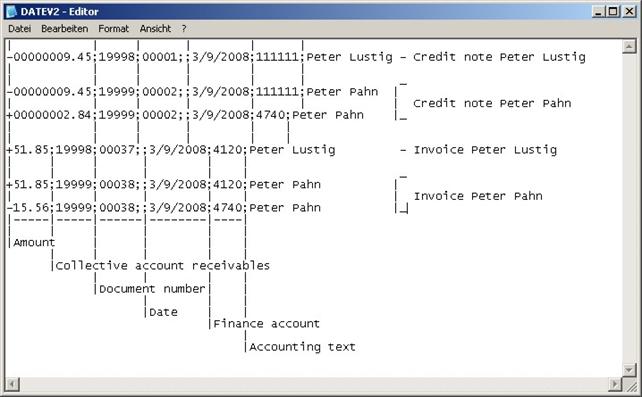
DATEV2.TXT with information
Importing payments
While importing payments, “Import of payments” must be entered as a FIBU target format in the program settings and then the FIBU data manager must be carried out. Afterwards, the file to be imported is selected to begin. After the import is finished, the faultily imported payments are listed if necessary in the window “Error log”. These must be then completed by hand. The imported payments are then listed in the project detail view in the “Payments” column.
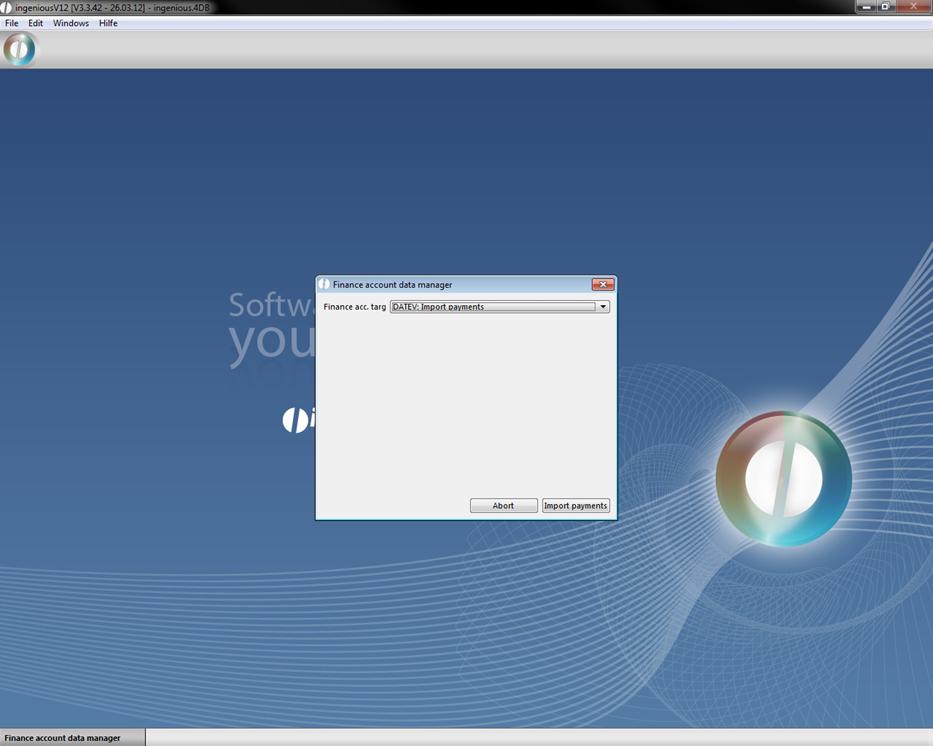
View of the FIBU Data Manager